| bayrad |
BayRAD LCD modules by EMAC, Inc |
T |
serial |
| CFontz |
CFA-632 and CFA-634 series by Crystalfontz, Inc. |
T |
serial/USB |
Fully supported |
| CFontzPacket |
CFA-533, CFA-631, CFA-633 and CFA-635 by Crystalfontz, Inc. |
T |
serial/USB |
Fully supported |
| curses |
Uses the curses library to draw on PC screen. |
T |
- |
tested |
| CwLnx |
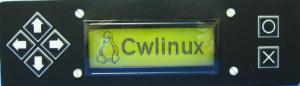
CW12232, CW12832 and CW1602 by CwLinux |
G |
serial/USB |
| ea65 |
AOpen XC Cube-AV EA65 |
T |
serial |
| EyeboxOne |
Eyebox One server by Rightvision / Alcatel-Lucent |
T |
serial |
| g15 |
Logitech G15 keyboard. Requires g15daemon and g15tools. |
- |
- |
| glcdlib |
Bridge driver for graphlcd
graphical display library |
- |
- |
| glcd |
Generic driver to support graphical displays. Support for
LCDs is implemented in connection type (see below). |
G |
see below |
| -t6963 |
T6963 based displays in graphics mode. |
|
parallel |
Fully supported |
| -serdisp |
Meta-driver using the serdisplib
library. See their web page for a list of supported displays. |
|
- |
Tested |
| -lcdp2usb |
Till Harbaum's GLCD2UDB device. |
|
USB |
Fully supported |
| -png |
Writes frames to PNG images. Most usefull for testing. |
|
- |
Fully supported |
| glk |
Matrix Orbital graphic displays using the GLK and GLC chipset.
See User Guide
for a list of supported models. |
G |
serial |
| hd44780 |
All displays using HD44780 and compatible controllers (like KS0066, KS0070, KS0076, LC7985, NT3881, SED1278, ST7066) |
T |
see below |
| -4bit |
HD44780 in 4bit mode |
|
parallel |
Fully supported |
| -8bit |
HD44780 in 8bit mode with output |
|
parallel |
tested |
| -winamp |
HD44780 in 8bit mode (winamp wiring) with output |
|
parallel |
Fully supported |
| -serialLpt |
HD44780 using serial protocol |
|
parallel |
tested |
| -picanlcd |
PIC-an-LCD serial device |
|
serial |
| -lcdserializer |
LCD serializer |
|
serial |
| -los-panel |
LCD on Serial panel device |
|
serial |
| -vdr-lcd |
VDR LCD serial device |
|
serial |
| -vdr-wakeup |
VDR-Wakeup module |
|
serial |
| -pertelian |
Pertelian X2040 LCD display |
|
serial |
| -lis2 |
VLSystem LIS2 device |
|
USB |
| -mplay |
VLSystem MPlay Blast device |
|
USB |
| -usblcd |
USBLCD device by Adams IT Service |
|
USB |
| -bwctusb |
Controller board by BWCT |
|
USB |
| -usb4all |
The PIC-based USB4all
controller. |
|
USB |
| -lcd2usb |
Atmel-based lcd2usb controller board (and compatible) by
Till Harbaum. |
|
USB |
Fully supported |
| -usbtiny |
Atmel-based USBtiny controller board |
|
USB |
tested |
| -uss720 |
USS-720 USB-to-IEEE 1284 Bridge |
|
USB |
| -ftdi |
HD44780 connected to FTDI FT2232 or FT245 chips |
|
USB |
tested |
| -i2c |
HD44780 connected to I2C bus (Linux only) |
|
I2C |
tested |
| -ethlcd |
HD44780 connected to ethlcd device |
|
LAN |
(tested) |
| i2500vfd |
Intra2net Intranator 2500 VFD |
G |
USB |
| icp_a106 |
ICP A106 alarm/LCD board |
T |
serial |
| imon |
Soundgraph iMON VFD, requires Linux kernel module. |
T |
- |
| imonlcd |
Soundgraph iMON LCD, requires Linux kernel module. |
G |
- |
| IOWarrior |
HD44780 displays connected to a Code Mercenaries
IOWarrior chip. |
T |
USB |
| irman |
Input only: IrMan IR remote control |
- |
- |
| irtrans |
IRTrans VFD (e.g.
built-in Ahanix MCE303 case), requires IRTrans irserver package |
T |
- |
| joy |
Input only: Use joystick for input (Linux only) |
- |
DB15 |
| lb216 |
Devices using the LB216 chipset from R.T.N. Australia |
T |
serial |
| lcdm001 |
LCDM001 device from kernel concepts |
T |
serial |
| lcterm |
LCTerm device from Neumark Elektronik |
T |
serial |
| lirc |
Input only: Use remote controls supported by LIRC as input. |
- |
- |
| lis |
VLSystem L.I.S MCE 2005 VFD |
T |
USB |
| MD8800 |
VFD in Medion MD8800 computers. |
T |
USB |
| mdm166a |
Futaba / Targa USB VFD, requires libhid |
G |
USB |
tested |
| ms6931 |
MSI-6931 display in MS-9202, MS-9205 and MS-9211 by MSI. |
T |
serial |
| mtc_s16209x |
MTC_S16209x LCD display by Microtips Technology Inc |
T |
serial |
| MtxOrb |
Character LCD / VFD series by Matrix Orbital |
T |
serial |
tested |
| mx5000 |
Logitech MX5000 keyboards, requires mx5000tools. |
- |
- |
| NoritakeVFD |
Character VFDs by Noritake itron. |
T |
- |
| picolcd |
Mini-Box.com PicoLCD 4x20 and PicoLCD 20x2 (OEM) |
T |
USB |
| pyramid |
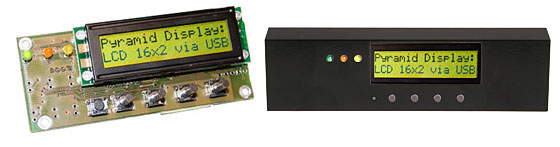
Devices built into Pyramid Computer servers. |
T |
USB |
Tested |
| sdeclcd |
SDEC LCD devices in Watchguard FireBox firewall appliances. |
T |
Parallel |
| sed1330 |
Any device using EPSON/SMOS SED1330 or SED1335 LCD controllers |
G(T) |
Parallel |
| sed1520 |
Any device using EPSON/SMOS SED1520 controllers |
G |
Parallel |
Fully supported |
| serialPOS |
POS character-displays using AEDEX emulation protocol |
T |
serial |
| serialVFD |
Several VFDs made by NEC, Futaba, Samsung, Noritake and IEE.
See
User Guide for a complete list. |
T |
serial/parallel |
| shuttleVFD |
VFDs in Shuttle XPC cases. |
T |
USB |
| sli |
SLI-OEM from Wirz Electronics |
T |
serial |
| stv5730 |
STV5730A on-screen display board by Adams IT Service |
T |
parallel |
| SureElec |
LCD controller boards by Sure Electronics |
T |
USB |
(tested) |
| svga |
Bridge driver to use libsvga to draw on PC screen. |
- |
- |
| t6963 |
Any device using T6963 chipset. |
G(T) |
parallel |
Fully supported |
| text |
Output screen content as text to console |
- |
- |
tested |
| tyan |
Tyan GS10 and GS12 series barebones |
T |
serial |
| ula200 |
ULA200 controller board by ELV |
T |
USB |
| vlsys_m428 |
VLSystem VFD/IR combination in the "Moneual MonCaso 320" case. |
T |
USB |
(tested) |
| xosd |
Bridge driver to use libxosd to draw on X screen. |
- |
- |